

Why your phone number shows as private and how to remove it
Table of contents
How to remove private number on your Android
How to remove private number on your iPhone (iOS)
What to do if your number still shows as Private
The first time I realised my number was showing as Private, it wasn’t because I changed anything. It was because people stopped answering my calls. A friend later asked, “Why do you always call with a private number?” That was news to me. I checked my phone. Everything looked normal. The caller ID was on. Still, every call went out as Private.
I tried calling different numbers. Same result. I searched through settings, toggled options on and off, and restarted my phone. Nothing changed. At that point, it was clear the problem wasn’t just the phone. Something else was getting in the way.
That experience made one thing obvious: removing a private number is not always straightforward. Sometimes it’s a setting you changed by mistake. Other times, it’s your network, your SIM, or a feature you didn’t even know existed. If your calls are showing as Private and you don’t know why, this guide walks you through how to remove private number on both Android and iPhone.
How to remove private number on your Android
Most Android phones control caller ID through network-level settings linked to your mobile carrier. While Android provides a general structure, manufacturers such as Samsung, Google, Xiaomi, Infinix, and others may place these options in slightly different locations. The goal is to instruct your network to display your number when you make calls.
Steps for Android 16 phones
- Open the Phone app on your device
- Tap the three dots in the top right corner
- Select Settings or Call Settings
- Go to Calling accounts or Supplementary services
- Choose the active SIM if you use more than one
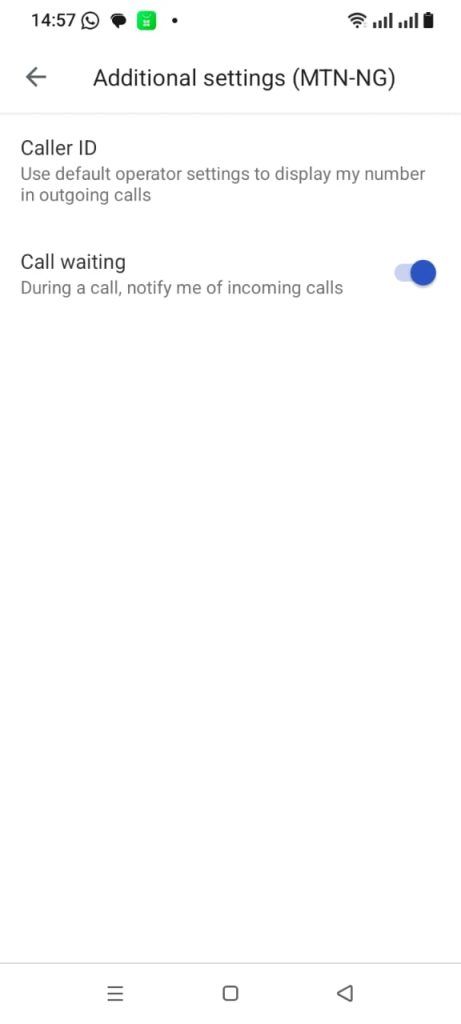
- Tap Additional settings, then Caller ID
- Select Show number or Network default
- Wait for the confirmation message that your network has updated the setting
Steps for Realme phones
- Open the Phone app on your Realme device.
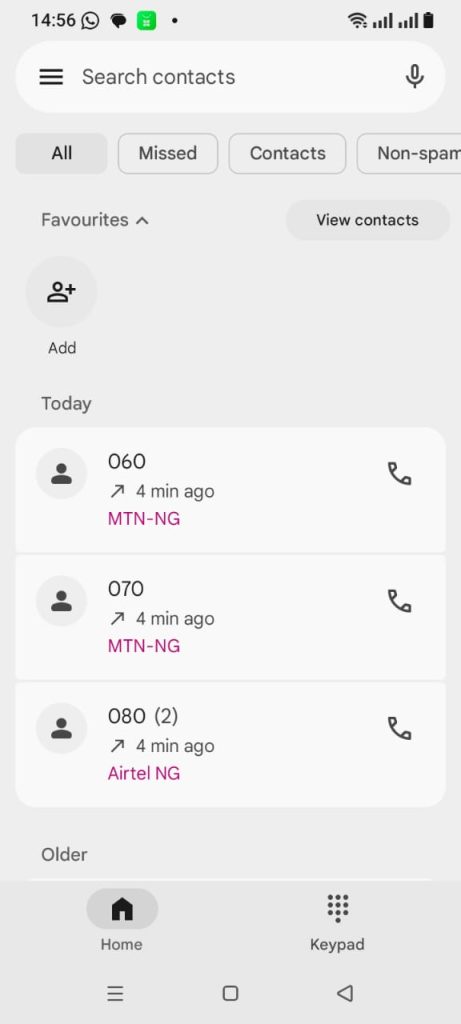
- Tap the menu icon (three lines or three dots) and select Settings
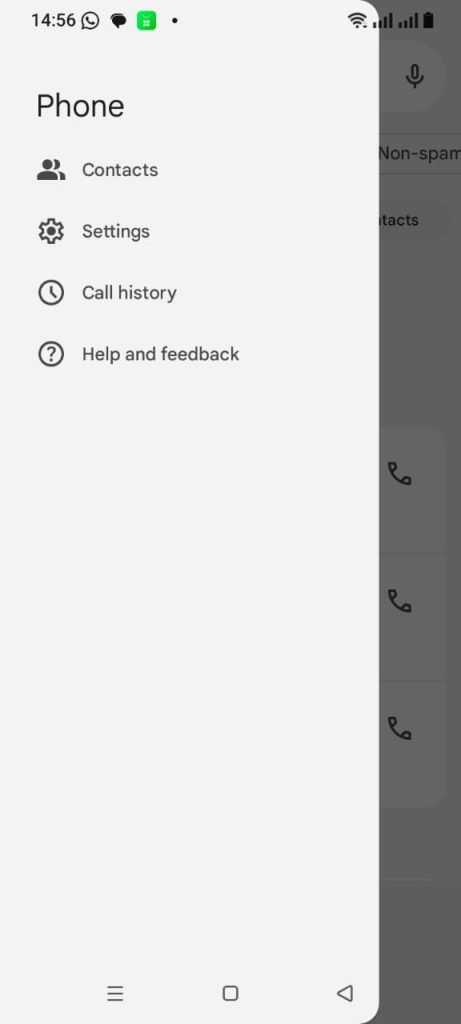
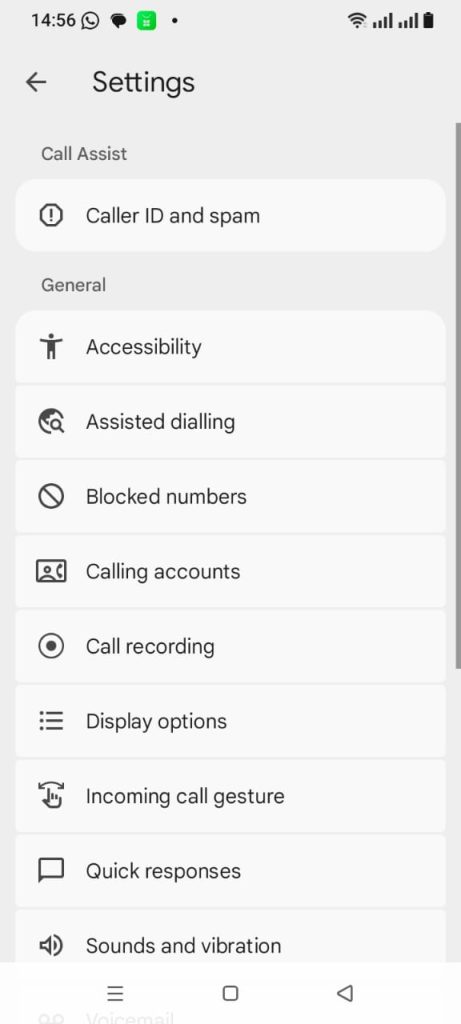
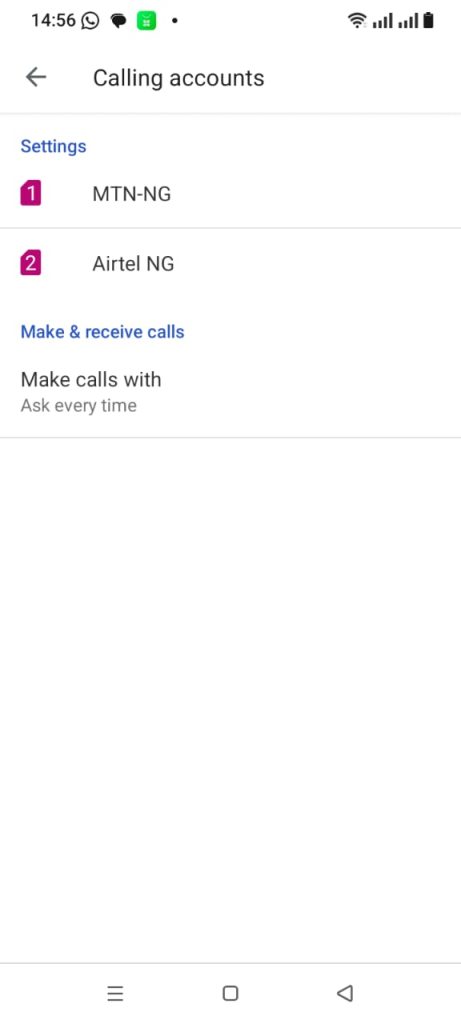
- Tap Calling accounts.
- Select the SIM card you want to change (for example, MTN or Airtel)
- Tap Additional settings.
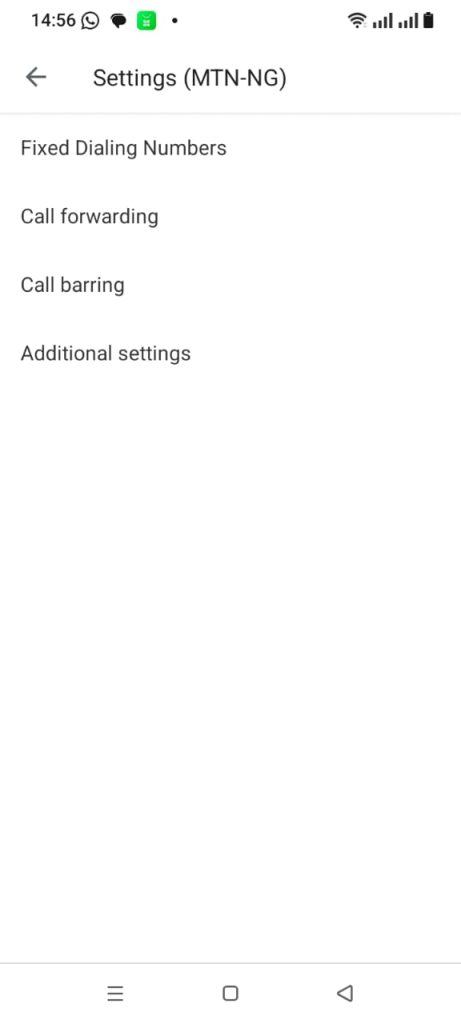
- Select Caller ID
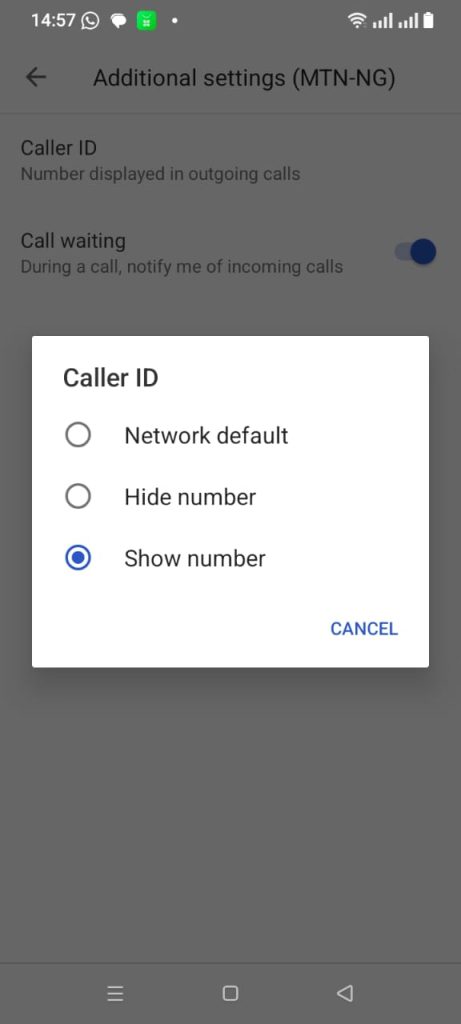
- Choose Show number, then confirm the change
Manufacturer-specific settings differences
Different Android brands place caller ID settings in different locations. The table below shows where to find these options on popular devices.
If the Caller ID option is locked
Android 16 includes an Advanced Protection feature under Settings > Security and privacy > Advanced Protection. This feature limits how your phone shares call data. If Caller ID is greyed out, check if Advanced Protection is turned on and is restricting your profile.
If the setting still does not change
You can reset the phone app to force a fresh connection with your network.
- Open Settings
- Go to Apps and select See all apps
- Find the Phone app
- Tap Storage and cache
- Select Clear storage and Clear cache
- Restart your phone so it can reconnect to the network
This process often fixes sync issues between your phone software and your mobile carrier.
How to remove private number on your iPhone (iOS)
In iOS 26, Apple changed where app settings live. All app controls, including phone settings, now sit inside the Apps section. This affects how you turn on caller ID.
Steps for iOS 26
- Open the Settings app
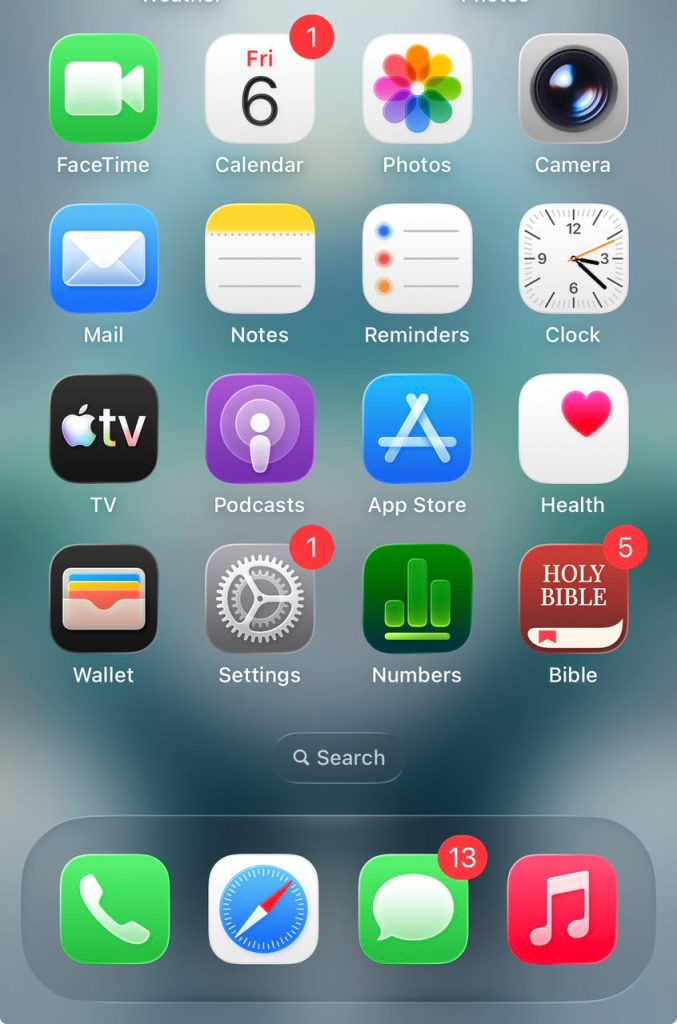
- Scroll and tap Apps
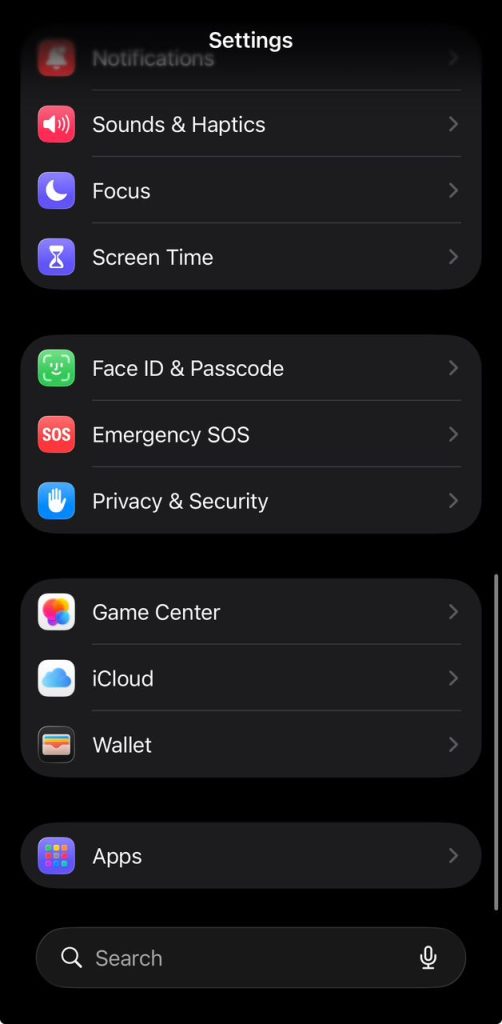
- Select Phone from the app list
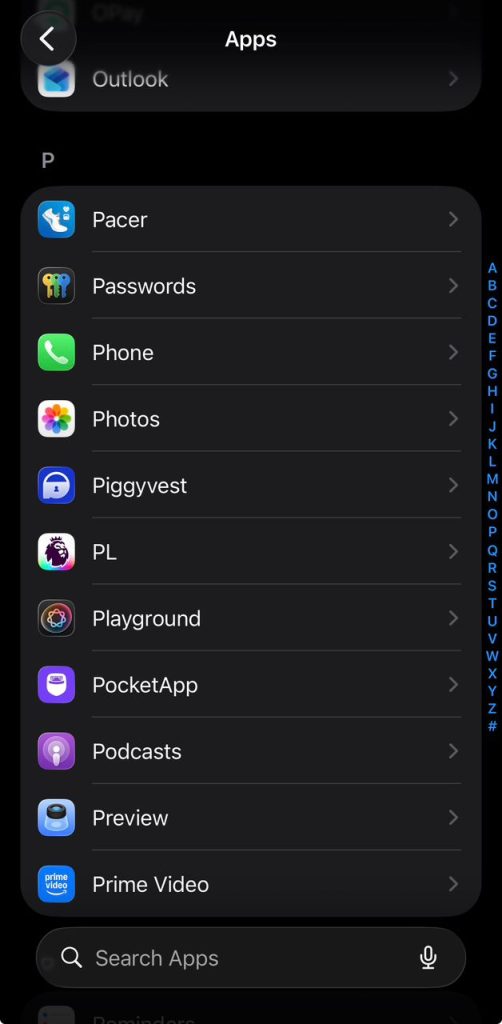
- Tap Show My Caller ID
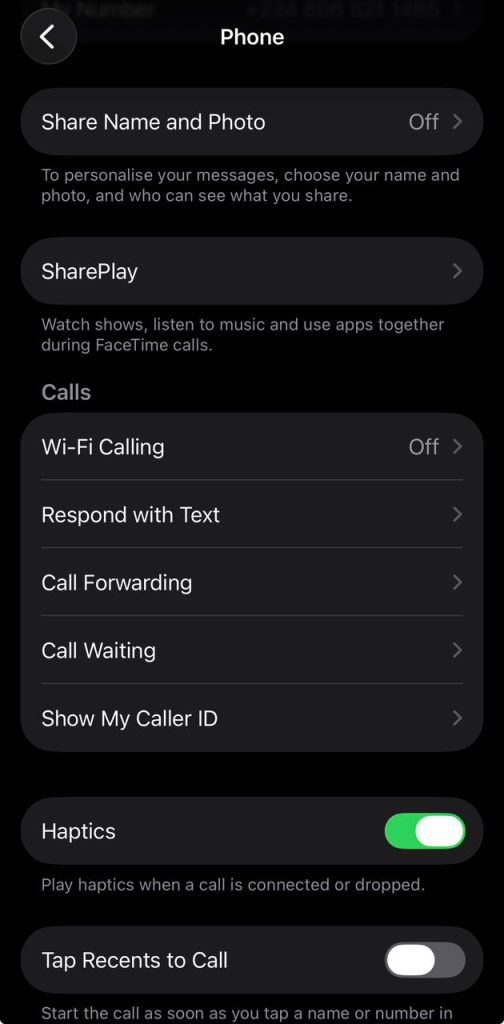
- Turn the switch on so it shows green
If you use more than one line
If your iPhone has more than one line, such as an eSIM and a physical SIM, you must enable Show My Caller ID for each line individually to ensure your number appears on all outgoing calls.
When the Caller ID option is missing
iOS 26 now links the caller ID more closely with Apple Business Connect. This can show verified business names and logos on calls. If you cannot see the Show My Caller ID option, your carrier may control it at the account level, which is common with some networks.
Fix display or settings issues
Older phones, such as the iPhone 14 and 15, may experience display glitches after updating to iOS 26.
- Close the Phone app and restart your iPhone
- Go to Settings, then General, then About to check for a carrier settings update
- Check Settings, then General, then VPN and Device Management to see if a work or school profile is limiting your caller ID settings
What to do if your number still shows as Private
If your phone shows caller ID is on, but callers still see your calls as Private, the issue is usually between your phone and your carrier’s network. You can fix this by adjusting carrier settings, performing a network reset, or checking the device.
Use USSD codes to control caller ID
These codes talk directly to your carrier network:
- Dial *31# to make your number visible for all outgoing calls
- Dial #31# on some Nigerian networks like MTN to disable caller ID and make calls appear Private
- Dial *#31# to check if your caller ID is Restricted or Allowed
- Dial #31# followed by the phone number, such as #31#08031234567, to hide your number for one call
Reset your network settings if the issue continues
Android 16
- Go to Settings, then System, then Reset options
- Tap Reset mobile network settings
- Confirm the reset. This also removes saved Wi Fi passwords and Bluetooth connections
iOS 26
- Go to Settings, then General, then Transfer or Reset iPhone
- Tap Reset, then Reset Network Settings
- Your phone will restart and reconnect to the carrier network
Other things that can cause the issue
- Privacy apps like Truecaller, Hiya, or RoboKiller may hide your number if they have deep system permissions
- Caller ID may fail when switching between modern networks and older network types
- SIM cards older than five years may not work well with 5G Standalone networks, so replacing the SIM or moving to eSIM can help
- When roaming or making international calls, the caller ID signal can be lost as it passes through different networks
By checking your phone settings, carrier tools, and network profile, you can usually restore your caller ID so your number shows correctly during calls.
You May Also Like

House Judiciary Rejects Vote To Subpoena Banks CEOs For Epstein Case

Pastor Involved in High-Stakes Crypto Fraud
