

Common smartphone problems and how to fix them
Effective smartphone repair always begins with identifying the actual cause of the issue, not jumping to conclusions or trying random fixes in the hope that one will work. A proper diagnostic procedure helps distinguish between:
- Software problems (glitches, corrupted files, malicious apps, etc.).
- Hardware problems (damaged screen, bad microphone/receiver, bad battery, etc.).
How to tell if a smartphone issue is hardware or software-related
The stability of smartphones relies on two major layers: the hardware and the software. The hardware consists of the smartphone’s physical components—basically everything you can see and touch, such as the screen, battery, microphone, speaker, and charging port. On the other hand, the software is the operating system; it controls everything your phone does, and all applications run on it. Common examples of operating systems are Android and iOS.
Top hardware issues that affect smartphones
- Damaged screens
- Unresponsive charging port
- Speakers and microphones becoming silent
Frequent smartphone software issues
- Frequent app crashes
- System lag
- Overheating not tied to weather or heavy use
How to diagnose software problems and identify the root cause
Analysis of repair trends indicates that many smartphone problems stem from identifiable, preventable patterns that can be detected through basic user diagnostics. Therefore, the diagnostic process is structured into three stages to isolate the problem.
- Software layer triage: The initial assessment starts with basic fixes such as rebooting, clearing RAM, updating apps, and clearing the cache.
- Isolation layer triage: If the problem persists, the smartphone should be placed in a clean environment, known as Safe Mode, to determine whether the issue lies within the device’s operating system or a third-party app.
- Hardware-layer triage: The final diagnostic step after software and third-party app conflicts have been ruled out. Hardware diagnostic tools are often hidden codes provided by the manufacturer to verify component functionality and indicate whether professional repair is necessary.
Essential smartphone troubleshooting: restart, system updates, and cache clearing
Many complex or confusing symptoms that suggest deep corruption are, in reality, simple memory conflicts or temporary system glitches. Addressing these foundational issues is the first step in any troubleshooting process.
Restarting and system updates: The device can be restarted by turning it off and back on, or by long-pressing the power button (on iPhone X and above, long-press the Volume Up and Power buttons simultaneously) to select the restart option.
Restarting the device is the fundamental fix for solving software-related issues. The action effectively refreshes the RAM, ensures that recently downloaded system patches or configurations are properly installed, and resets all temporary changes to their defaults.
Also, failure to install pending updates—whether for the operating system or individual applications is a frequent source of bugs, instability, reduced battery performance, screen freezes, and modem/firmware conflicts. Consequently, confirming and applying the latest system and application updates is an integral part of the foundational fix.
Cache management: System and application caches are temporary storage areas designed to improve speed and user experience. But when caches become full or corrupted, they produce the opposite effect, contributing to sluggishness, application crashes, and overall lag in performance. Clearing the cache provides an effective fix for many stability issues—especially device lagging.
It is essential to differentiate between clearing an app’s cache and clearing its data. Clearing the cache removes temporary files without affecting user data on the app. Conversely, clearing an app’s data deletes user login details and all other user files within the app, effectively resetting the app to its initial state (e.g., clearing the data in a game will delete your progress).
For persistent failure or suspected corruption within the app data, clearing the data or deleting the app entirely might be necessary. To clear an app cache using a Samsung Galaxy device and many other Android smartphones:
- Navigate to Settings > Apps > [Specific App] > Storage > Clear Cache.
Note: iOS devices do not allow users to clear caches manually.
Safe mode: If the device continues to exhibit consistent crashes, persistent lag, or behaviour that was not solved by restarting and clearing the cache, there is a likelihood of a conflict with a third-party app. To isolate the conflict, the device must be put into Safe Mode.
The procedure for entering Safe Mode varies slightly by device but generally involves pressing and holding the Power button until the power option appears, and then long-pressing the Power Off icon on the screen until a prompt to reboot into Safe Mode appears.
The diagnostic value of Safe Mode is immediate: if the phone performs normally without crashes or slowdowns, the fault is localised to a recently installed or corrupted third-party app. This isolation process is essential because it allows the user to specifically identify and uninstall problematic applications without resorting to a complete data wipe.
Fixing smartphone lag, freezing, and frequent crashes
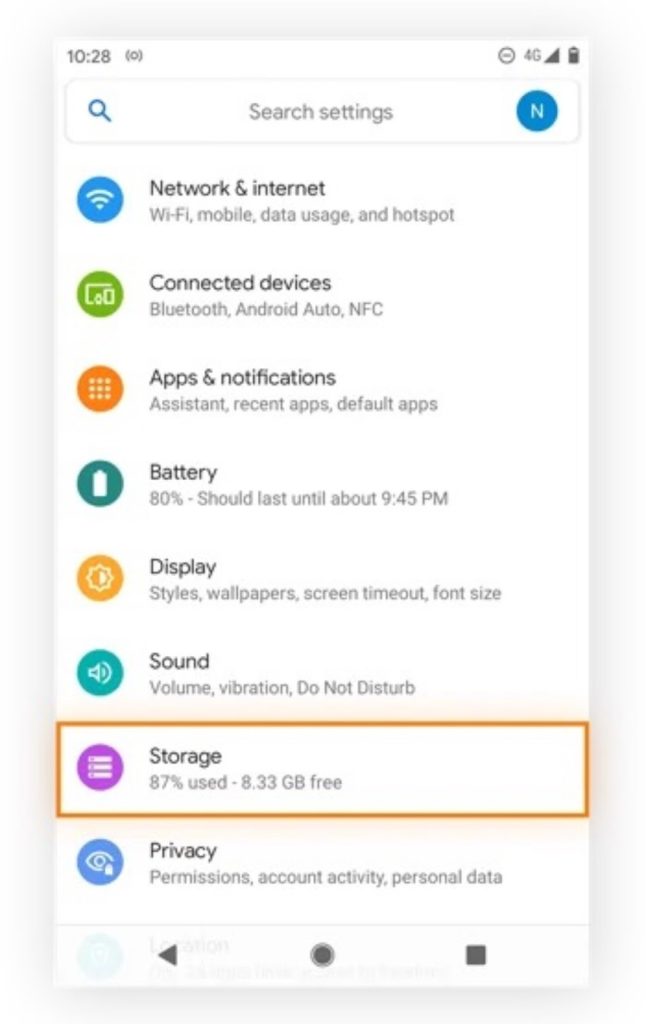
Performance degradation, such as excessive lagging, application/device crashes, and instability, are frequently reported issues that compromise the effectiveness of smartphones.
Performance degradation: Causes and mitigation
The primary cause of excessive sluggishness and application crashes is often resource exhaustion, driven by two factors:
- Limited storage.
- Excessive background processing.
Full internal storage is a critical barrier to effective performance. Smartphones require a certain amount of free space to function optimally. Consequently, deleting unnecessary files, media, and unused applications is an essential remedy for device lag. Regularly deleting and offloading unused applications jettisons “dead weight” that may otherwise consume memory and affect processing cycles via background processes.
Furthermore, system optimisation can yield noticeable speed improvements, especially on older hardware. Reducing or disabling non-essential graphical features, such as animated wallpapers and transition effects, frees up processing power for essential tasks.
Handling unresponsive screens and system freezes
In situations where users experience a complete system freeze and the operating system is entirely unresponsive to touch input, the device requires a hardware-level override known as a Force Restart. The specific button combinations required depend on the manufacturer and model.
iOS (iPhone 8/X and upwards): The user must execute a precise three-step sequence:
- Press and quickly release the Volume Up button.
- Press and quickly release the Volume Down button.
- Press and hold the Side (Power) button until the Apple logo appears. Ignore the prompt to power off the device when it appears; continue holding the button.
Android (Generic/Samsung): The most common sequence is to press and hold the Volume Down and Power buttons simultaneously for approximately 10 to 15 seconds, until the device vibrates or starts the reboot sequence.
Android (Google Pixel 7/7 Pro): If the device is unresponsive, press and hold the Power button until the device powers up (this can take up to 30 seconds).
The outcome of the Force Restart serves as an important diagnostic tool. If the hard reset works and restores normal functionality, the issue was caused by a software malfunction. However, if the sequence is unsuccessful and the issue persists, it strongly suggests a more severe hardware fault.
Table: performance troubleshooting triage flowchart
Smartphone battery health, charging issues, and overheating prevention
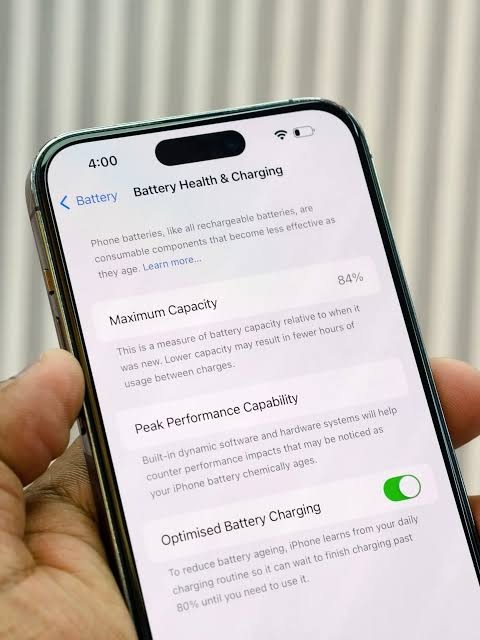
Battery performance and longevity remain crucial concerns for users. Management of charging cycles, heat, and charging hardware is necessary to maximise the battery’s lifespan.
Understanding and preventing rapid battery drain and overheating:
Rapid battery drain is mostly due to high-level activity from apps running in the background. Users should check their battery health settings to identify and restrict applications that exhibit high, unauthorised background power use.
A critical factor in battery performance is thermal management. Batteries drain faster when exposed to high temperatures, even when the device is idle. Overheating can be caused by running too many powerful applications simultaneously or using the phone in a hot environment. High temperatures accelerate chemical degradation and increase power draw, forcing more frequent charging, which further stresses the battery.
Remedial steps include: closing all unnecessary apps, keeping the phone in a cooler temperature location, and temporarily removing the protective phone case to improve airflow during heavy use or charging.
Optimised charging strategies for longevity:
Modern lithium-ion battery technology thrives within an optimal charge range, requiring users to abandon the old habit of completely draining batteries before recharging.
To minimise strain and prolong battery life, the best maintenance practice is to keep the charge level between 20% and 80%. The operating system is designed with integrated machine learning algorithms to automate and manage this optimal range. iOS smartphones use “Optimised Battery Charging,” while Android devices use “Adaptive Battery.”
Charging port malfunctions:
Most charging port failures are caused by dust, mechanical wear, corrosion, and debris accumulation. Symptoms include inability to hold a charge, instability during charging (the cable needs to be held at an angle), or inability to connect to a PC.
Diagnostic and solution: how to solve your charging port issue
Debris, particularly dust and lint buildup, is the most common root cause of connectivity issues. The primary DIY fix involves cleaning the port using a compressed air canister or a small non-metallic brush to dislodge the debris. Alternatively, use a wooden toothpick or a plastic pick to gently scrape out compacted lint. Avoid metal tools (which can cause short circuits) and cotton wool (which can leave fibres behind).
Furthermore, battery health requires the use of original charging accessories. Non-original accessories can cause slow charging or damage the charging circuitry. If the device continues to exhibit charging issues after the port has been thoroughly cleaned, the issue is likely rooted in physical hardware damage.
How to fix smartphone connectivity issues: Wi-Fi, mobile data, and Bluetooth
These failures often require troubleshooting that moves from basic resets to advanced network configurations.
Troubleshooting Wi-Fi connection issues:
The fundamental approach to persistent Wi-Fi issues is a series of basic resets to clear temporary glitches.
- Rebooting: Restarting both the smartphone and wireless router clears software glitches on both ends.
- Airplane Mode Toggle: Turning Airplane Mode ON for 10 seconds and then OFF forces the internal modem to reset its connection attempt.
- Network Refresh: If issues persist, instructing the device to “Forget” the Wi-Fi network and then reconnecting often resolves issues caused by corrupted authentication profiles.
- VPN/Firewall Check: Disable any active VPNs or third-party firewalls, as these can interfere with local network routing.
Resolving cellular data and signal loss:
If mobile data fails to work, reinsert the SIM card to ensure proper seating and contact with the tray; users can also consider replacing the SIM card entirely. Crucially, keeping software up to date is vital, as system updates often include modem firmware patches.
Access Point Name (APN) settings management:
APN settings define the network path used for cellular data connectivity. Incorrect APN settings are a common cause of cellular data failure.
- Android fix: Navigate to Settings > Mobile Networks (or Connections) > Access Point Names and tap the option to Reset to Default. If the carrier requires specific APN information, manually enter it as provided by the provider.
- iOS fix: Apple devices generally restrict user modification of APN settings, but these can be reset via Settings > General > Reset > Reset Network Settings.
Bluetooth pairing problems:
This often involves conflicts between devices or corrupted pairing data. Basic troubleshooting involves cycling Bluetooth off and on, confirming that all peripheral devices (headphones, car systems, etc.) are in pairing mode, and restarting both the smartphone and the connected device.
For persistent failure, clear the device memory of all saved connections:
- Navigate to Settings > Connected Devices > Saved Devices > Forget.
Troubleshooting smartphone audio, sensor, and screen display issues
Issues involving sensory and physical components require distinct diagnostic methods to confirm whether the failure is electrical or mechanical.
Troubleshooting speaker and microphone output:
Audio problems can manifest as no output, distorted sound, or microphone failure.
- Isolation: Before assuming a speaker fault, remove all external devices plugged into the audio port and confirm the phone is not accidentally redirecting audio to a Bluetooth device.
- Cleaning: A common cause of muffled audio is the accumulation of dust in the speaker grills. Clean using a soft, dry brush.
Hardware diagnostic tooling:
If audio issues persist after cleaning and software checks, use internal diagnostic tools to test the components directly.
- Samsung Galaxy Devices: Dial the code *#0*# in the phone app to access a hidden diagnostic menu. This allows for specific tests of the speaker, receiver, and microphones. If you fail to hear sound playback during a test, the hardware is likely faulty.
- Other Android Devices: Similar diagnostic tools can sometimes be accessed by dialling codes such as *#*#3424#*#*.
Screen damage and display malfunctions:
Despite advancements in glass technology, cracked screens remain a common hardware issue. Display malfunctions include shattered glass, unresponsive touch areas, or dead pixels. In these cases, screen replacement is the only feasible repair.
Smartphones security problems: operating system errors and account lockouts
This includes advanced software problems involving security threats, system synchronisation errors, and system-level conflicts.
Malware, adware, and suspicious apps:
Malware and adware often manifest as persistent performance degradation, unauthorised activity, or overwhelming notifications.
On Android devices, the first diagnostic step is to isolate the device in Safe Mode, which prevents the malicious application from running. To prevent re-infection, users must ensure that Google Play Protect is active. It is highly recommended to avoid installing third-party applications from side-loading sources. If malware persists, clearing the device’s downloads and browser data can help eliminate malicious payloads.
Sync failures and account lockouts:
Account management issues vary between the major mobile ecosystems.
Google Account Sync Issues (Android): Failure of core services such as Gmail, contacts, or calendar to synchronise can often be resolved by manually checking sync settings. Advanced troubleshooting includes:
- Date/Time Correction: Incorrect settings can disrupt secure certificate validation. Set date and time to “Automatic.”
- Forced Check-in: An advanced system-level command can be initiated by dialling *#*#2432546#*#* (*#*#CHECKIN#*#*) in the phone app.
Apple ID/iCloud Lockouts (iOS): Access failures are commonly linked to password issues or two-factor authentication. If a user cannot sign in or receive verification codes, they must rely on the formal Account Recovery process.
Advanced system management and Factory Data Reset:
Managing OEM Bloatware (Android): A major long-term performance issue on Android devices stems from manufacturer pre-installed applications (bloatware). For technically proficient users, the Android Debug Bridge (ADB)offers a solution to remove these without rooting.
- Command example: pm uninstall -k –user 0 NameOfPackage.
Factory Data Reset (FDR): The Factory Data Reset is the ultimate remedy for deeply rooted software corruption. FDR erases all user data, applications, and associated information. Always back up data before performing an FDR.
Final tips: Preventive smartphone maintenance for a longer lifespan
Careful maintenance reduces the frequency of component failure. Smartphone longevity relies on consistent physical protection and software hygiene.
- Physical Care: Use a high-quality protective case and screen protector. Regularly clean ports and speaker openings with a soft, dry brush to prevent debris buildup.
- Scheduled Reboots: Restarting the device once per week prevents the gradual accumulation of temporary glitches.
- Consistent Updates: Apply all system and app updates to benefit from security patches and battery improvements.
- Battery Practices: Maintain charge between 20% and 80% and avoid exposing the device to extreme temperatures.
You May Also Like

Unleashing A New Era Of Seller Empowerment

Top cryptos to watch this Christmas: Bitcoin, Ethereum, XRP price predictions
