
How To Disable Cloud Sync for Google Authenticator
Why Disable Google Authenticator Cloud Sync
Google Authenticator provides a cloud sync feature that allows your authentication code data to be backed up to your Google account. While this feature makes data recovery more convenient, it also introduces security risks. If your Google account is compromised, an attacker may gain access to all of your authentication codes, potentially putting the security of your linked accounts at risk. For users who prioritize asset security, it is recommended to disable cloud sync so that authentication code data is stored only on the local device.
How to Check Whether Cloud Sync Is Enabled
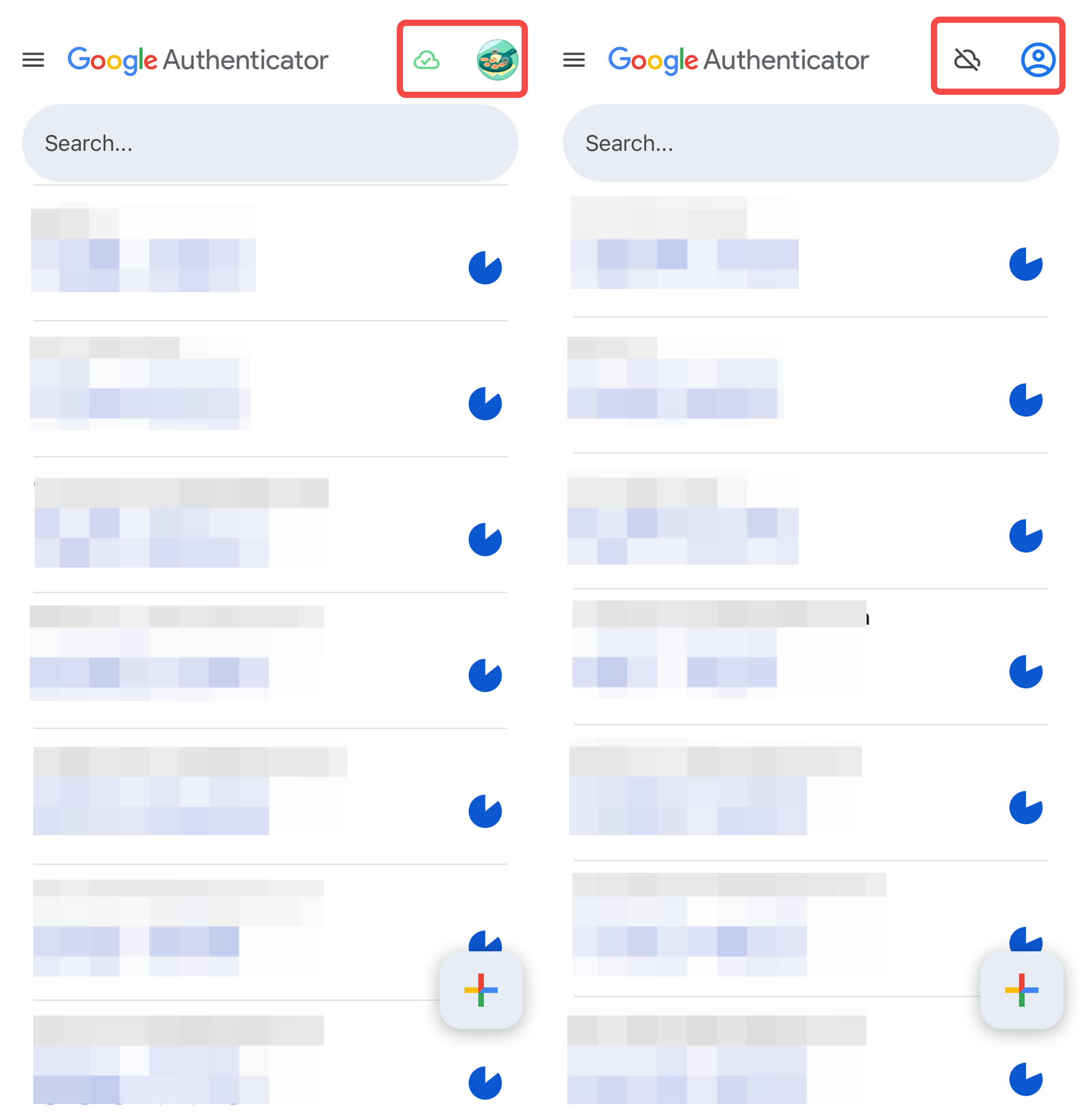
Open the Google Authenticator app and check the top-right corner:
- If you see a colored cloud icon with a check mark, cloud sync is enabled and needs to be manually disabled.
- If you see a gray cloud icon with a diagonal slash, cloud sync is disabled and no action is required.
How to Disable Cloud Sync
1) Open the Google Authenticator app on your mobile device and tap your account icon.
2) In the pop-up window, select Use Authenticator without an account.
3) Tap Continue.
4) Google Authenticator will sign out of your Google account, and cloud sync will be disabled. After this, all authentication code data will be stored only on your local device.

Note: After cloud sync is disabled, authentication code data cannot be automatically restored if you change your phone or uninstall the app. Before switching to a new device, it is recommended to use Google Authenticator's Transfer accounts feature to manually migrate your data to the new device.
For more information about Google Authenticator, you may also refer to the following articles: